
Over the past few weeks we’ve been busy. We added new marketplaces, gave the app a fresh look and made lots of small improvements that make your day-to-day work quicker. We’ve announced several of these one by one, so this post puts it all together: a short tour of the app as it looks today.
A dashboard that tells you what needs attention
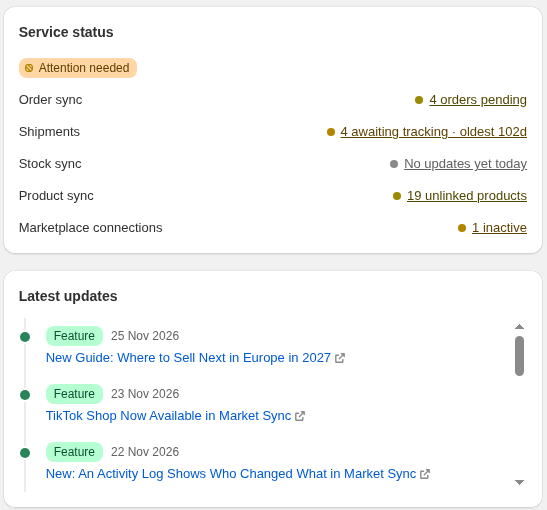
When you open Market Sync, the Service status panel shows straight away whether everything is running smoothly. It covers order sync, shipments, stock sync, product linking and your marketplace connections. When something needs a look, such as orders waiting to be imported, shipments still waiting for tracking or products that aren’t linked yet, it’s shown as a link that takes you straight to the page where you can deal with it.
Next to it, Latest updates keeps you up to date on new features and guides, so you never miss an improvement.
All your marketplaces on one page
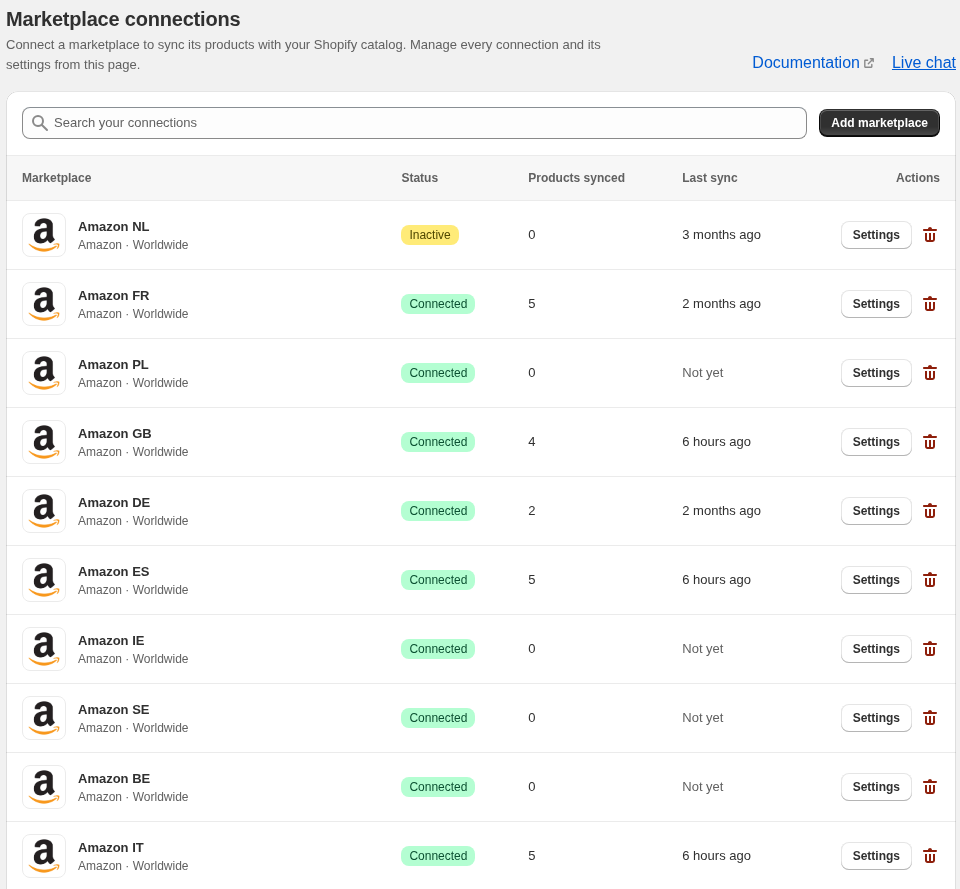
The Connections page lists every marketplace you’re connected to, with its status, the number of linked products and when it last synced. You can search your connections, open the settings for any of them, or add a new marketplace from the same screen.
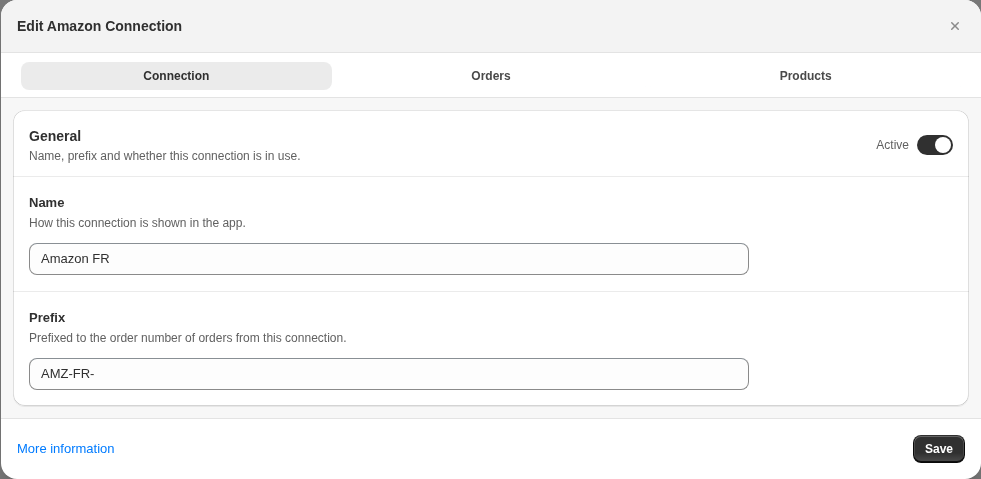
Each connection’s settings are now split into three clear tabs: Connection, Orders and Products. You can rename a connection, set the prefix that’s added to its order numbers, or switch it on and off. Every setting is explained in plain words.
See at a glance which products are linked
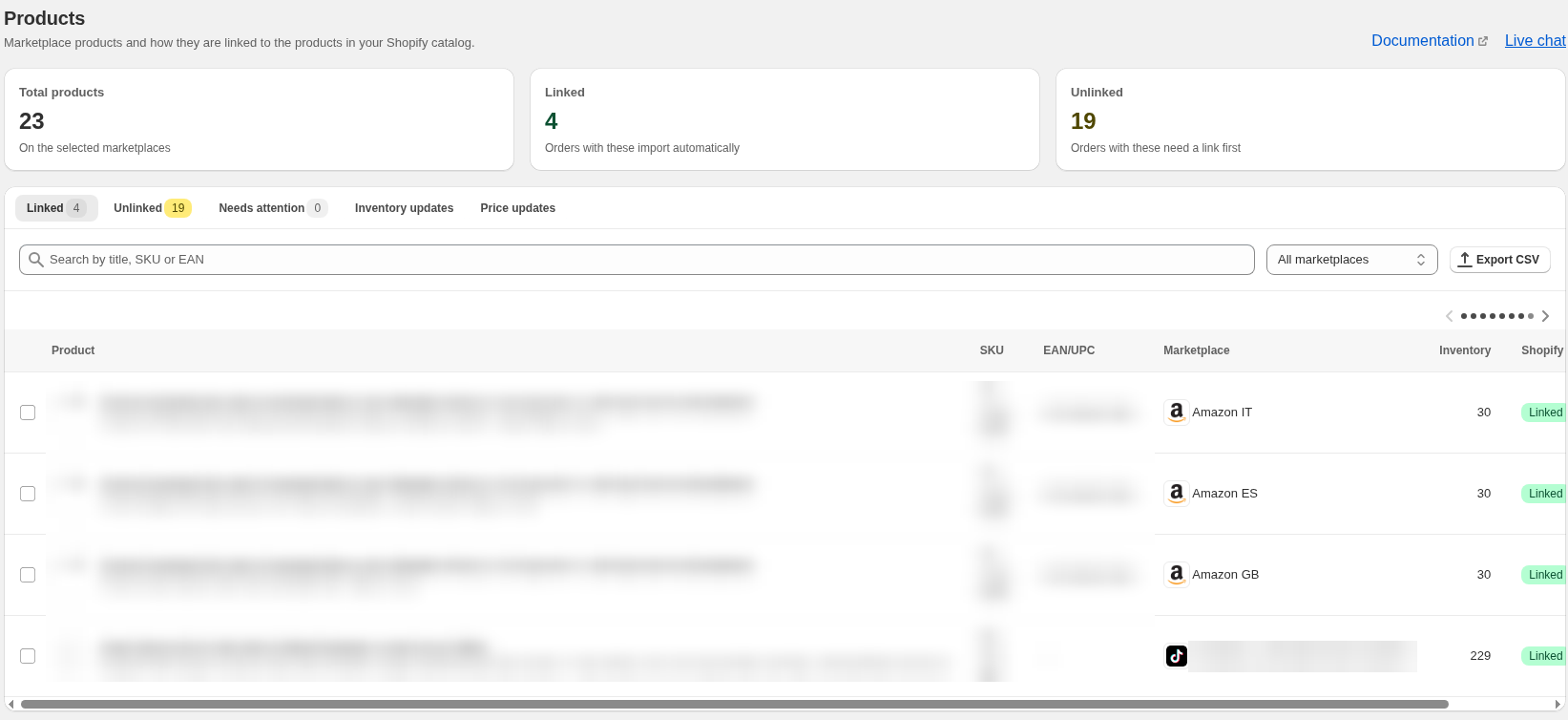
The Products page now starts with three simple totals: all products, linked and unlinked. Orders for linked products import automatically, while unlinked products need a link first. Tabs for Linked, Unlinked, Needs attention, Inventory updates and Price updates let you jump to exactly what you’re looking for. You can search by title, SKU or EAN, filter by marketplace and export the list to CSV.
Orders, sorted the way you work
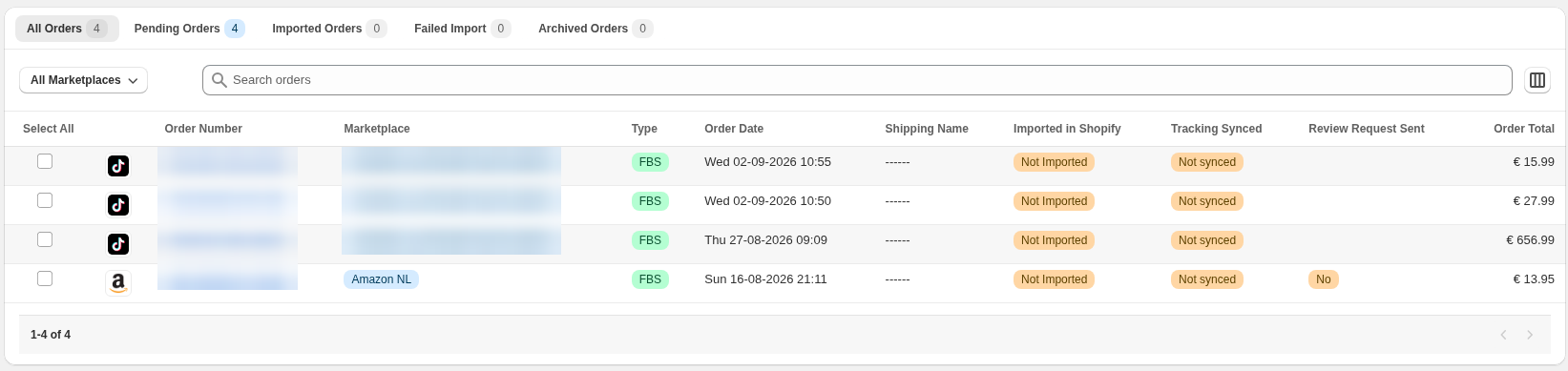
The Orders page groups your orders into Pending, Imported, Failed import and Archived. For each order you can see whether it’s in Shopify and whether tracking has been synced back to the marketplace, so nothing slips through.
Every order’s history at a glance
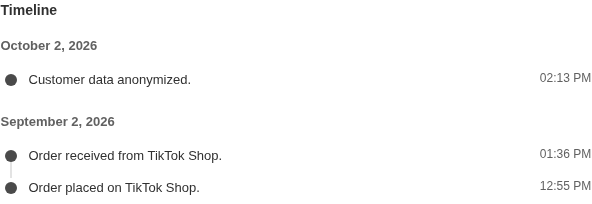
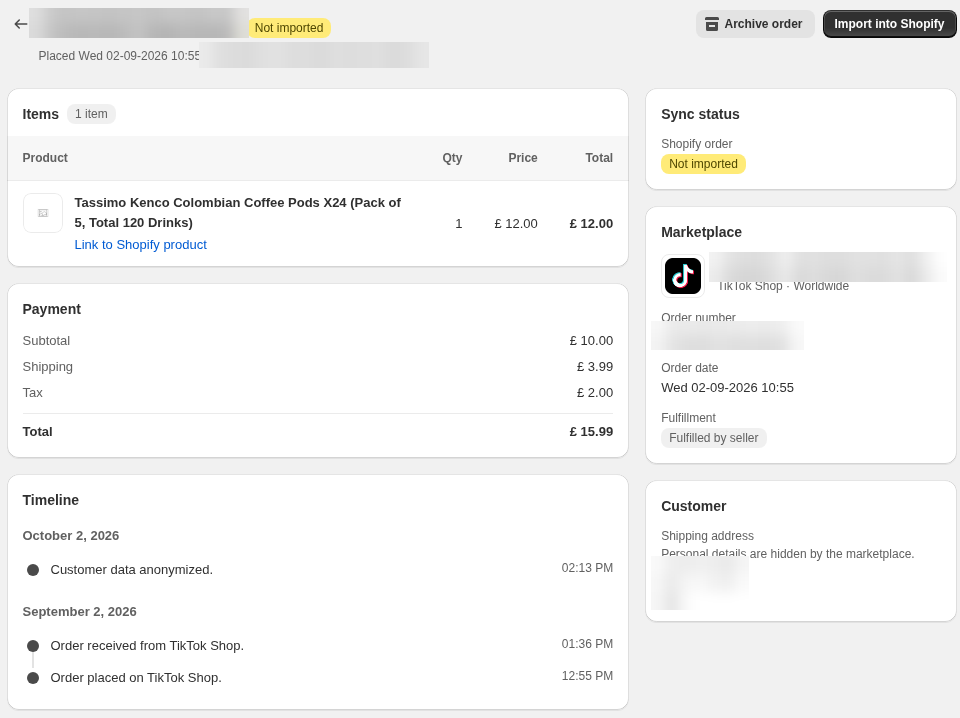
Each order now shows a Timeline on its detail page. It lists what happened to the order, grouped by date with the newest first: when it was placed on the marketplace, when Market Sync received it and imported it into Shopify, when it was archived, when tracking was received and synced, and when the customer data was anonymised. Failed imports and products that were relinked show up there too. So you can see an order’s history at a glance.
Settings you can search, and more control over customer data
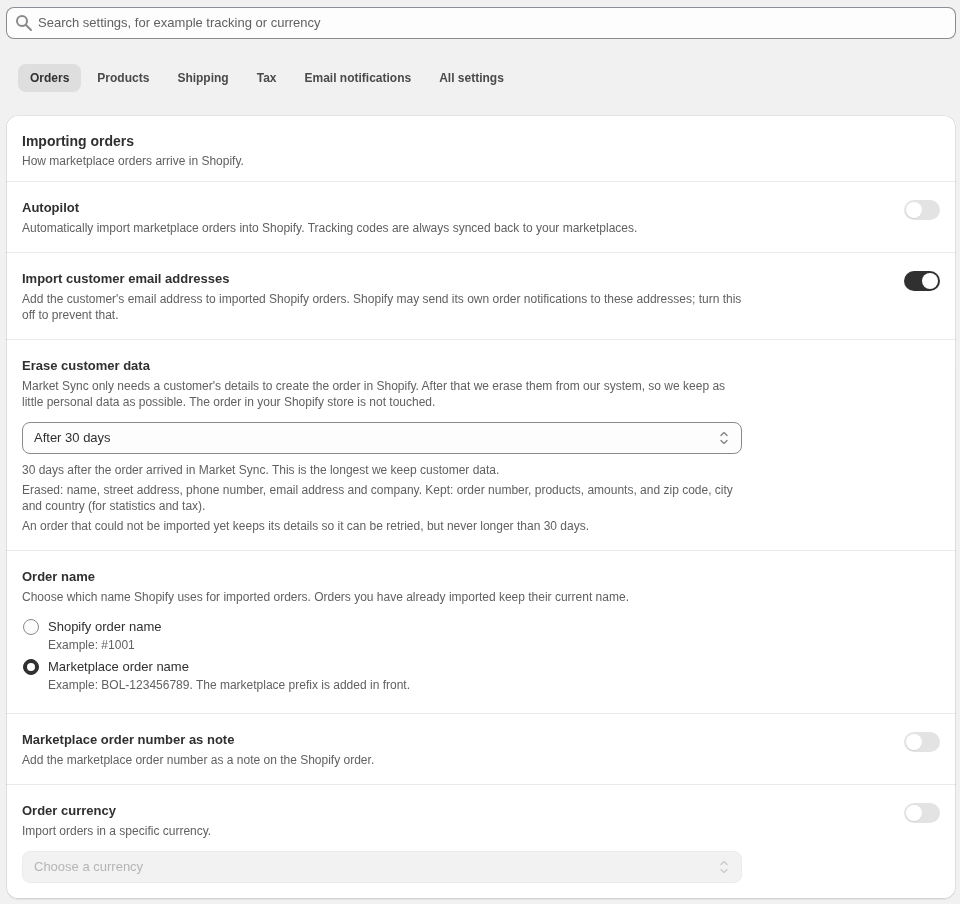
Settings are grouped into tabs (Orders, Products, Shipping, Tax and Email notifications) with a search bar at the top. New here is Erase customer data. Market Sync only needs a customer’s details to create the order in Shopify, and you now choose when we erase them from our system. Your orders in Shopify stay as they are.
More places to sell
The list of marketplaces you can connect keeps growing. Recent additions include TikTok Shop, Obelink, Shop Apotheke, OBI, Carrefour, Douglas, Hornbach and zooplus. Pick one under Connections → Add marketplace. Not sure where to start? Our guide Where to Sell Next in Europe in 2027 can help you choose.
Also new
- Smarter product relinking. If a product variant is deleted and recreated in Shopify, Market Sync finds it again by SKU or EAN the next time an order comes in, and relinks it automatically when there’s exactly one clear match.
- Smoother bol orders. Items that were cancelled on bol are left out (or their quantity reduced) when the order comes into Shopify, and an order with everything cancelled isn’t imported.
- Clearer alert emails. The emails about orders that didn’t import and tracking issues now have a cleaner, easier-to-read layout.
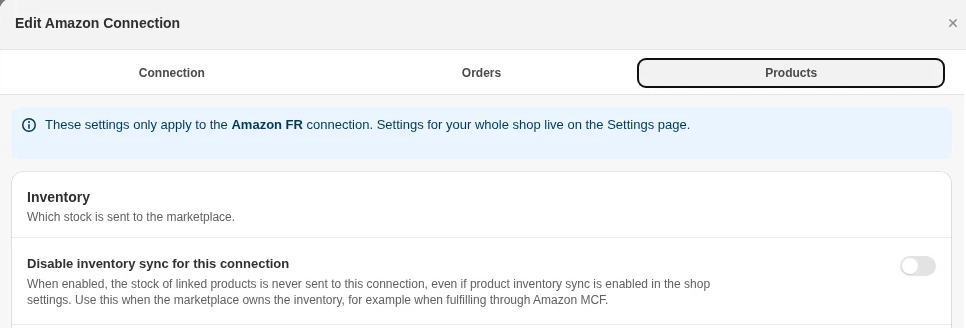
- Stock sync per connection. A switch on a connection’s Products tab lets you stop sending stock to that marketplace, even when inventory sync is on for your shop. Use it when the marketplace owns the inventory, for example when you fulfil through Amazon MCF. Your other connections keep syncing as usual.
In case you missed it
- Granular permissions: choose what each Shopify staff user can do (nothing is restricted until an admin sets them up)
- An activity log that shows who changed what
- A weekly report of your marketplace sales
- TikTok Shop now available in Market Sync
Tools to work securely
We also wanted to give merchants better tools to work securely.
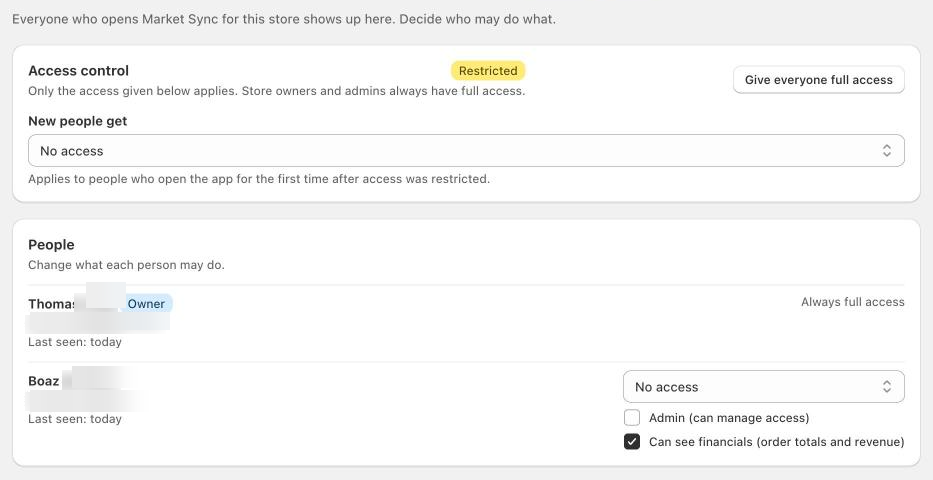
Decide who can see and change what
In the Shopify app, you can now decide who on your team can see and change what. Everyone has full access until an admin restricts it. After that you choose, per person, who can view or change orders, products, connections, settings and billing, and who can see financials. New people start with the access you set, for example no access until you grant it. Store owners and admins always keep full access.
An activity log of every change
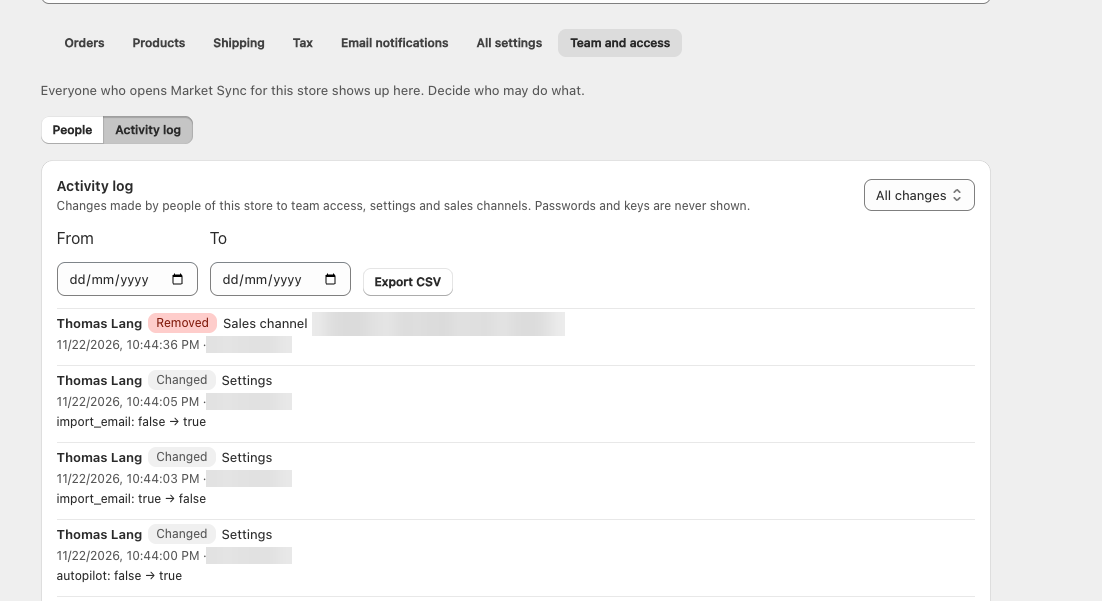
An activity log, also in the Shopify app, shows the owner and admins who changed what and when: team access, settings and connections, with the old and new values.
Customer details only as long as needed
Market Sync only needs your customers’ details briefly to sync an order. If you switch on the setting, those details are removed from the app within 24 hours. Names, street addresses, phone numbers, company names and email addresses are then erased from Market Sync’s system. Your orders in Shopify stay as they are.
A weekly report every Monday
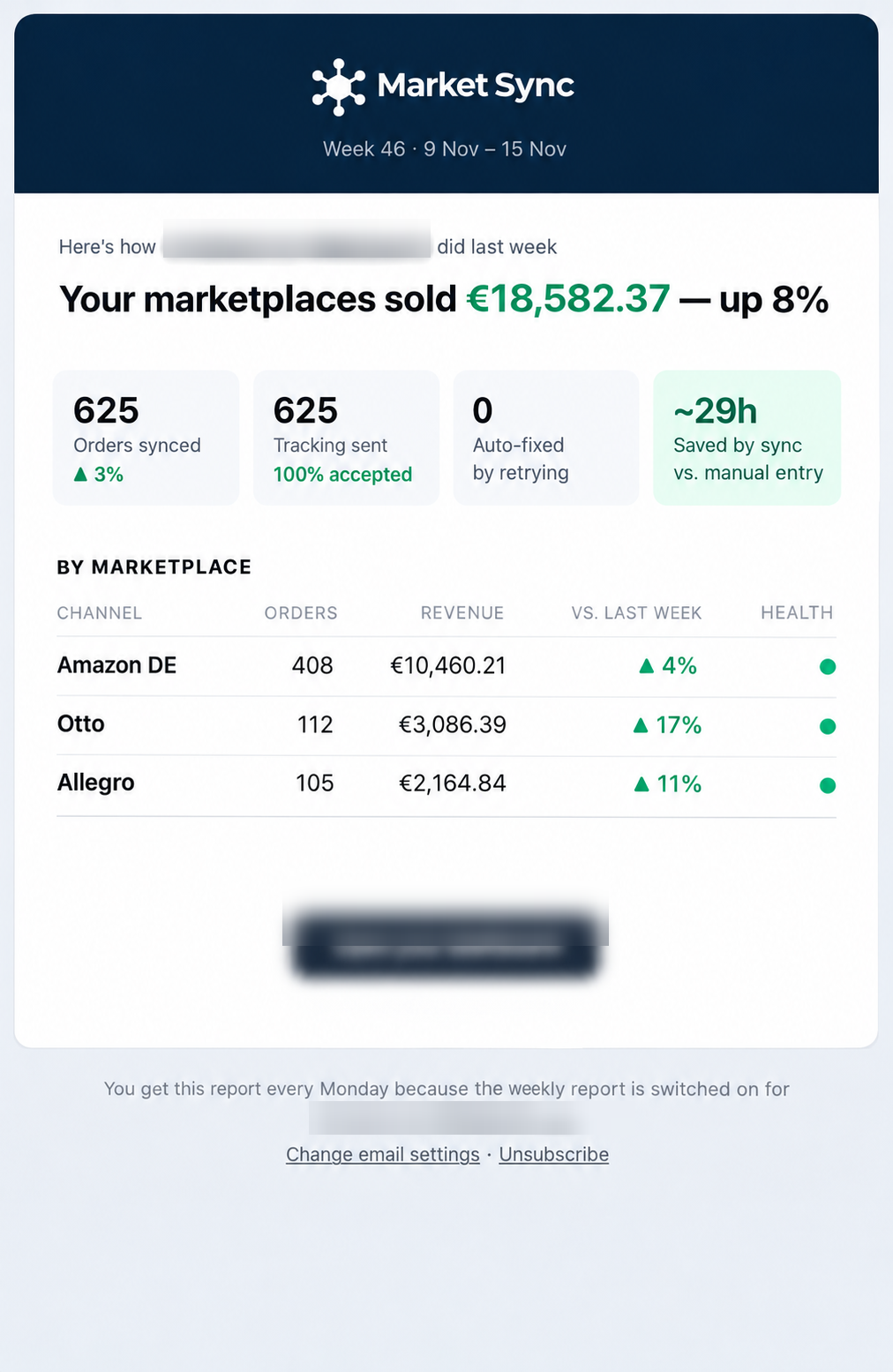
Every Monday morning you can get a weekly report: sales and orders per marketplace compared with the week before, tracking numbers sent, tracking problems we fixed automatically, anything that needs your attention, and an estimate of the hours Market Sync saved you. Switch it on under Settings → Email notifications.
Take a look
Open Market Sync in your Shopify admin to see the new screens for yourself. New to Market Sync? Visit market-sync.app to get started. Questions or ideas? Our team is one click away through live chat in the app.
